
Table of Contents
- Introduction
- What does Changing Shopify Inventory Location mean?
- Why Changing Shopify Inventory Locations to a 3rd Party is Necessary?
- How to Change Shopify Inventory Location to a 3rd Party?
- What are the Common Troubleshooting Issues that Occur While Changing Location?
- What are the Things to Remember While Changing Location?
- conclusion
Managing inventory across multiple locations is a game-changer for e-commerce businesses, especially when outsourcing to third-party fulfillment services. If you are wondering how to change Shopify inventory location to a 3rd party, you are in the right place.
This guide will walk you through the process of updating locations in Shopify to integrate with dropshipping suppliers or external warehouses, ensuring accurate tracking, efficient order fulfillment, and optimized shipping. Whether you are scaling your store or streamlining operations, we’ll cover the why, how, troubleshooting, and key considerations to make the transition smooth.
What does Changing Shopify Inventory Location mean?
In Shopify, changing an inventory location refers to updating the designated physical site or digital app where your products are stored, sold, or fulfilled. Locations can include retail stores, warehouses, pop-up shops, dropshipping partners, or any other spot where you manage stock.
When you adjust a product’s inventory location, you are essentially assigning which site’s stock will be used to process orders for that item. This enables precise inventory tracking across various sites and guarantees that orders are fulfilled from the right place.
This feature is particularly valuable for businesses with multiple outlets, warehouses, or those relying on third-party fulfillment providers. Additionally, shifting a location can influence shipping costs and delivery options, as these depend on the site’s address and operational capabilities.
Why Changing Shopify Inventory Locations to a 3rd Party is Necessary?
Switching a product’s inventory location to a third-party fulfillment service or dropshipping supplier is essential when outsourcing product management and shipping. This ensures seamless integration with external partners while maintaining control within your Shopify store. Here’s why it’s crucial:
Accurate Inventory Tracking: Assigning products to the right third-party location allows Shopify to monitor stock levels precisely for each fulfillment source, avoiding overselling and discrepancies.
Automated Order Fulfillment Routing: Shopify directs orders to the designated location for fulfillment. Setting a third-party location ensures orders are automatically sent to the correct service or supplier, streamlining the process.
Efficient Multi-Location Management: If your store handles some inventory in-house and outsources others, updating locations lets you oversee everything in one place while clearly separating fulfillment duties.
Optimized Shipping and Delivery: Shipping costs and options are influenced by the fulfillment location’s address and capabilities. Correctly assigning a third-party location ensures precise rate calculations and delivery timelines.
Seamless App Integrations: Many fulfillment apps require products to be linked to their specific location for real-time inventory syncing and status updates, enabling smooth operations.
Compliance and Accurate Reporting: Proper location assignments aid in tax calculations, shipping zone determinations, and regulatory compliance, as Shopify uses location addresses for these purposes. This also supports better financial and operational reporting.
How to Change Shopify Inventory Location to a 3rd Party?
If you are outsourcing fulfillment to a third-party service or dropshipping supplier, updating your product’s inventory location in Shopify ensures accurate tracking and seamless order processing. Follow these steps to make the switch:
Set Up the Third-Party Location in Shopify:
1) Log in to your Shopify admin and navigate to Settings > Locations.
2) Click Add location.
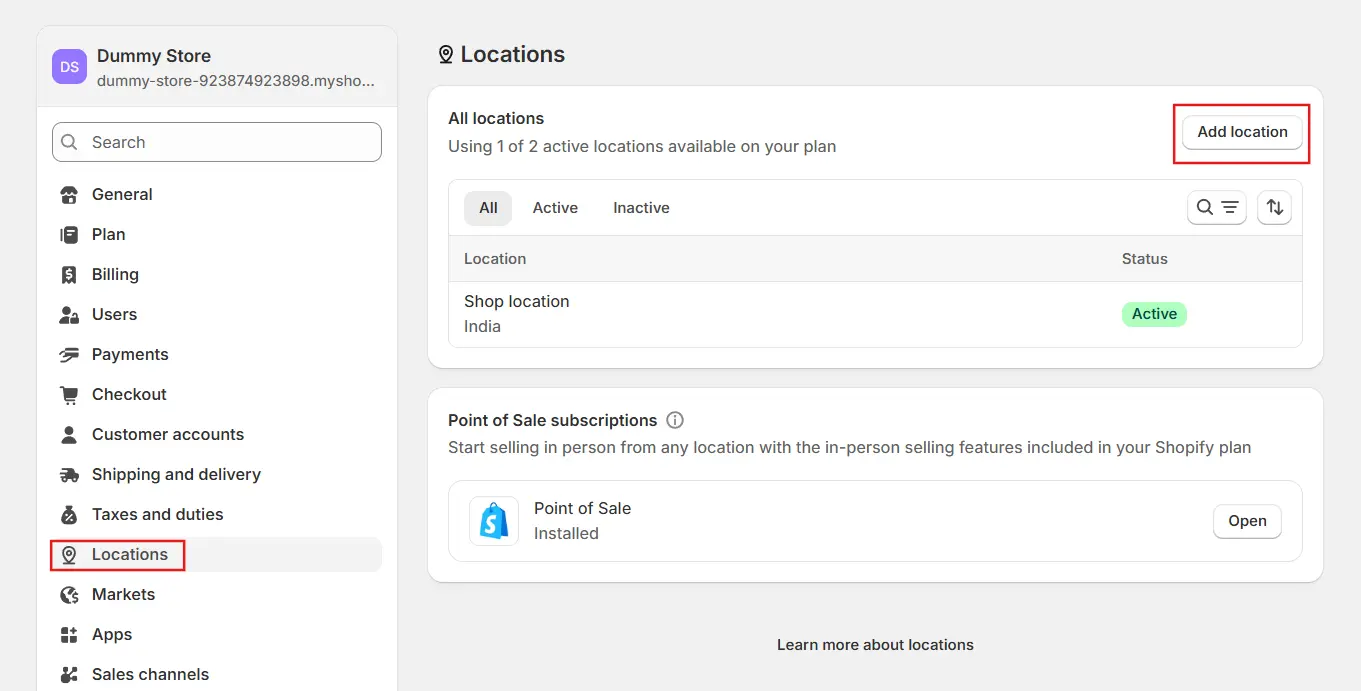
3) Provide the name and address of the third-party fulfillment center or dropshipping supplier.
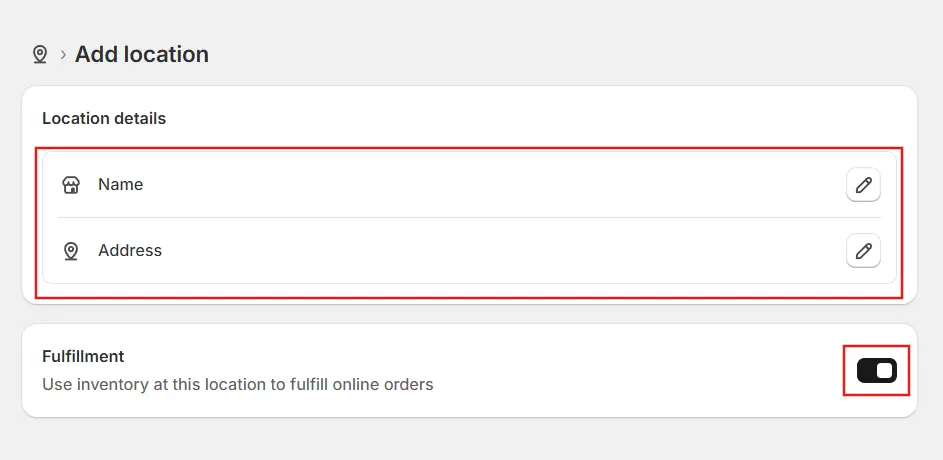 4) Click Save to add it to your list of locations.
Assign Products to the Third-Party Location:
1) Go to Products in your Shopify admin.
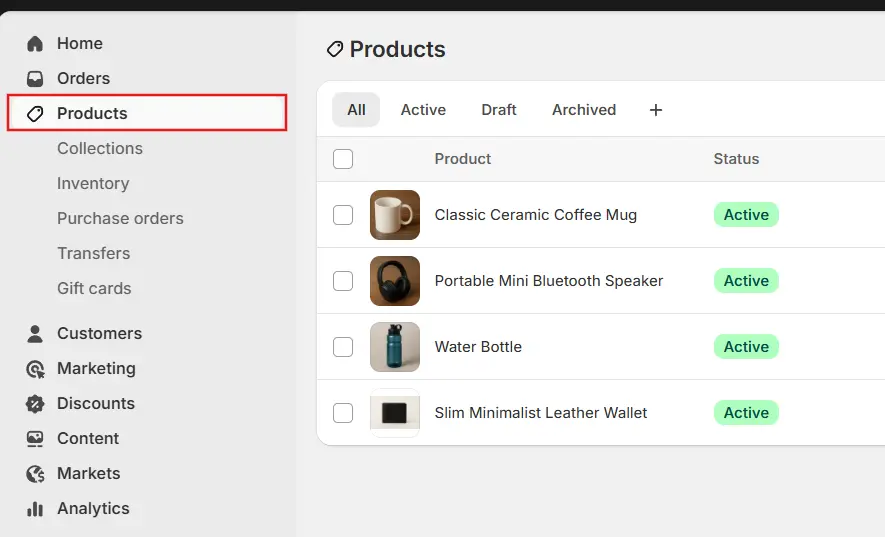 2) Select the product you want to update.
3) If the product has variants, choose the specific variant.
4) In the Inventory section, make sure Track quantity is enabled.
5) From the Inventory will be stocked at dropdown, select Multiple locations from the dropdown.
6) Click the Edit locations icon.
7) Choose the third-party location and deselect any other locations where you no longer stock the product.
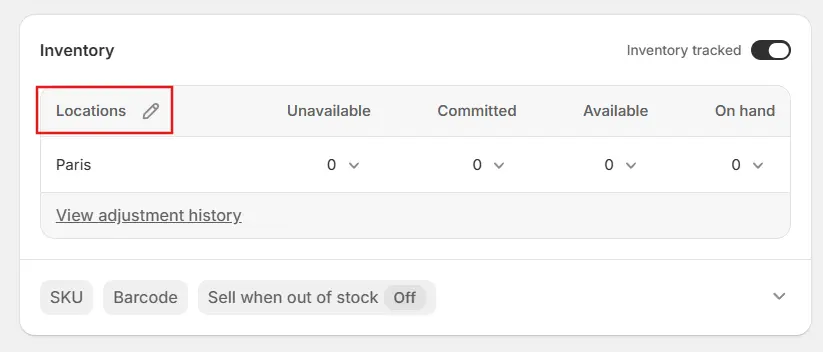 8) Enter the available inventory quantity for that third-party location.
9) Click Save to apply the changes.
Configure Order Fulfillment Priority:
1) Head to Settings > Shipping and delivery > Order routing.
2) Click Manage.
3) Create a new rule to prioritize fulfillment from your own warehouse first, followed by the third-party location.
4) Save the rule.
This setup ensures Shopify attempts to fulfil orders from your warehouse before routing them to the third-party provider.
Integrate Fulfillment Apps (If Applicable):
1) If your third-party service uses a dedicated app, install it from the Shopify App Store.
2) Connect and configure the app to sync inventory levels and handle order fulfillment directly from the third-party location.
By completing these steps, you’ll maintain precise inventory control across your own and external locations, preventing stock issues and ensuring efficient order fulfillment. If you encounter any issues, Shopify’s support resources or the app’s documentation can provide additional guidance.
Need help setting up inventory locations in Shopify? Hire a Shopify expert to handle it for you.
What are the Common Troubleshooting Issues that Occur While Changing Location?
Changing inventory locations in Shopify can sometimes lead to operational hiccups. Below are frequent problems and their causes, along with steps to resolve them for smoother management.
Inventory Discrepancies: Stock levels might not sync accurately across locations, resulting in overselling or inaccurate counts. This often occurs due to manual entry errors or app sync failures.
Order Fulfillment Errors: Orders could be sent to the wrong location if routing priorities aren’t configured correctly, disrupting fulfillment workflows.
Location Not Appearing: Newly added or third-party locations may not display in product settings if they weren’t properly created, activated, or saved in the Shopify admin.
Permission Issues: Staff might lose access or have mismatched permissions after grouping stores or reorganizing, especially when moving between organizations.
Shipping Rate Mismatches: Incorrect shipping costs can arise if zones and rates aren’t adjusted to match the new location’s address and capabilities.
App Integration Problems: Fulfillment apps may struggle to sync inventory or process orders if the location isn’t set up correctly within the app’s configuration.
Deactivated Location Confusion: Inventory from deactivated locations becomes unavailable, potentially causing delays if orders still reference it.
Tax and Reporting Errors: Location changes can skew tax calculations and reports if addresses or related settings aren’t updated promptly.
Resolution Steps: To fix these, double-check location setups in your Shopify admin, manually verify and update inventory quantities, set up order routing rules for prioritization, review and adjust user permissions, and align shipping, tax, and app integrations with the new locations. If issues persist, consult Shopify support or the app provider’s documentation, and communicate changes to your team and partners for clarity.
If third-party apps are not syncing correctly, a custom Shopify app can help. View our Shopify App Development Services.
What are the Things to Remember While Changing Location?
When updating inventory locations in Shopify, it’s crucial to account for various operational, administrative, and compliance factors to maintain smooth management and avoid disruptions. Here are the essential points to remember:
Eligibility and Plan Restrictions: Only stores on plans other than Shopify Plus can fully group stores into organizations or manage multiple locations. Shopify Plus accounts have distinct options for handling locations and organizations.
Inventory Accuracy: Always update inventory quantities precisely during location changes to prevent overselling, stockouts, or discrepancies that could affect sales and fulfillment.
Order Fulfillment Impact: Shifting a location determines where orders are processed. Confirm that the new location has the capacity and resources to handle fulfillment, shipping, and any specific product requirements.
Shipping Rates and Delivery: Costs and delivery times can fluctuate based on the new location’s address. Review and adjust your shipping settings in Shopify to reflect these changes accurately
User Permissions: When grouping or transferring stores between organizations, staff retain their store-level permissions but lose organization-level access. Audit and update team permissions post-change to ensure appropriate access.
Billing and Finance Permissions: Billing controls shift from the store level to the organization level upon grouping. Only organization owners and admins will have billing access, so plan for this transition.
Location Address Accuracy: Enter the new location’s address correctly in your Shopify admin to generate precise shipping labels, tax calculations, and compliance reports.
Third-Party Fulfillment Integration: For external services, verify that the location is set up correctly and fully integrated with any fulfillment apps to enable seamless inventory syncing and order processing.
Multiple Locations and Order Routing: Configure order routing rules to prioritize fulfillment from specific locations (e.g., your warehouse before third-party sites) to optimize inventory use and shipping efficiency.
Impact on Reports and Taxes: Location changes can influence tax nexus, financial reporting, and regulatory compliance. Maintain updated records to stay compliant and accurate.
Deactivating Locations: If you deactivate a location, its inventory becomes unavailable for fulfillment. Strategize this carefully to avoid impacting ongoing orders.
Communication: Notify your team, fulfillment partners, and any relevant stakeholders about location changes to prevent confusion and ensure everyone is aligned.
Conclusion
Changing your Shopify inventory location to a 3rd party can significantly enhance your e-commerce operations by enabling better inventory control, faster fulfillment, and cost-effective shipping.
By following the step-by-step guide outlined here, addressing potential troubleshooting issues, and keeping key considerations in mind, you can seamlessly integrate third-party services without disrupting your store.
If you need any help in changing your inventory location, Contact Shine Dezign Infonet for expert assistance to ease the process for you!