
Table of Contents
- Introduction
- What are the Reasons You Might Want to Cancel a Shopify App Subscription?
- How to Cancel Shopify App Subscription? (Step-by-Step Guide)
- What Happens After You Cancel Your Subscription?
- What are the Alternatives to Full Cancellation?
- What are the Pros and Cons of Cancelling Vs. Pausing or Downgrading Shopify App Subscription?
- What are the Common Troubleshooting Issues During Cancellation?
- What are the Best Practices to Follow While Cancelling?
- Conclusion
Managing apps is a crucial part of keeping your Shopify store running smoothly and cost-effectively. As your business grows or your needs change, you may find that certain apps are no longer useful, too expensive, or causing store performance issues. That’s when knowing how to cancel a Shopify app subscription the right way becomes essential.
Whether you want to avoid unnecessary charges, simplify your setup, or switch to a better alternative, this guide walks you through the entire process, from reasons to cancel, step-by-step instructions, common issues, best practices, and more.
What are the Reasons You Might Want to Cancel a Shopify App Subscription?
There are several common reasons why Shopify store owners choose to cancel an app subscription, often driven by evolving business needs, financial considerations, or technical issues. Here are some key scenarios:
App No Longer Meets Your Needs: If the app’s features or performance no longer align with your business goals, such as outdated tools or a lack of updates, it may be time to cancel and seek alternatives.
Store Shutdown: When closing your Shopify store permanently, cancelling subscriptions prevents unnecessary charges and simplifies the process.
Underutilization: If you are not using the app frequently enough to justify its cost, cancelling can free up your budget for more essential tools.
Recurring Charges: To cut expenses, you might cancel apps with ongoing fees that add up, especially if your revenue is fluctuating.
Better Alternatives Available: Discovering a superior app or in-house solution that better fits your requirements can prompt cancellation of the current one.
Conflicts with Your Store: Apps that cause issues like theme incompatibilities, slow loading times, or integration problems with other apps may need to be removed to maintain smooth operations.
Store Pausing or Deactivation: If you are temporarily deactivating your Shopify store (e.g., for seasonal breaks), cancelling subscriptions avoids accruing charges during downtime.
Expense Management: To optimize your overall app budget, you might cancel underperforming or redundant subscriptions, allowing you to allocate resources more effectively.
How to Cancel Shopify App Subscription? (Step-by-Step Guide)
Here is a detailed step-by-step guide to canceling a Shopify app subscription:
Log in to your Shopify admin:
1) Go to https://admin.shopify.com/ and sign in with your store credentials.
Go to Apps and sales channels:
2) In the Shopify admin sidebar, scroll down and click Settings.
3) From the Settings menu, choose Apps.
Find the app you want to cancel:
4) Look through your installed apps to locate the subscription you want to end.
Uninstall the app:
5) Click the three dots (•••) next to the app’s name.
6) Select Uninstall from the dropdown options.
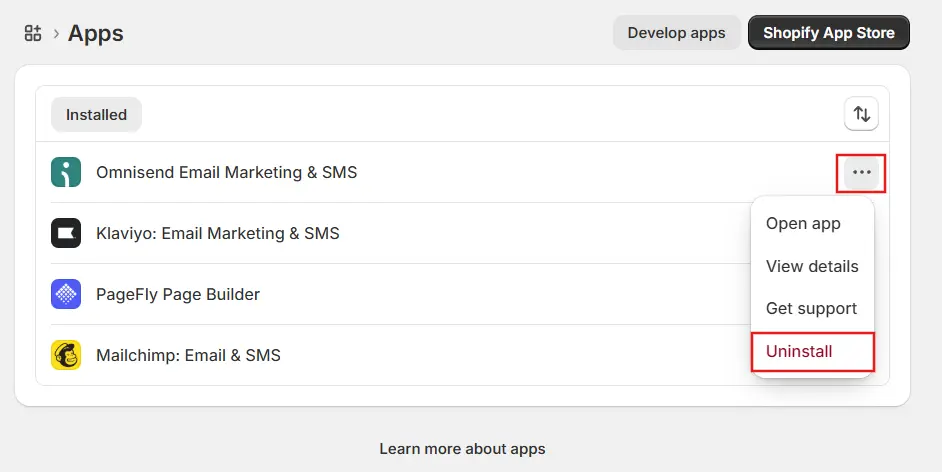
7) Confirm the uninstallation when prompted.
Check if the subscription must be cancelled separately:
1) Some apps require cancellation outside of Shopify.
2) Go to the app’s website or account dashboard (usually linked in the app listing or in your email receipts).
3) Follow their steps to cancel the subscription directly with them.
Remove any added app code if needed:
If the app inserted custom code into your theme (for example, like Locksmith), refer to the app’s documentation to remove that code before uninstalling.
Confirm the cancellation:
Keep an eye on your billing statements to make sure the charges stop.
If you continue to be billed, contact the app developer or Shopify Support.
How to Cancel Subscriptions for Apps with Third-Party Billing?
If your app handles billing through 3rd-party services (not via Shopify invoices), you will need to cancel the subscription directly within the app provider. Simply uninstalling the app or pausing your store won’t stop the billing; the app can continue charging you until you officially cancel it.
Steps to follow in your Shopify Admin:
1) Log in to your Shopify admin.
2) Navigate to Settings > Apps and sales channels.
3) Select the app in question.
4) Within the app’s interface, look for a section like Billing, Subscriptions, Plans, Pricing, or Settings. Cancel your subscription from there (apps typically manage plan changes and cancellations internally).
If You Can’t Find a Cancel Option in the App
1) Visit the app’s external website or account portal (many third-party billed apps handle cancellations there).
2) If necessary, use the app’s “Get support” feature to contact the developer directly.
If you need help replacing or custom-building a Shopify app after cancellation, our Shopify app development team can help.
What Happens After You Cancel Your Subscription?
After cancelling your Shopify app subscription, the following things usually occur:
1) Access to app features is removed: You will lose the ability to use the app’s tools, features, and services.
2) Billing ends: All recurring subscription charges for the app will stop.
3) Data retention policies differ: Some apps delete your data right after cancellation, while others may keep it for a certain period in case you decide to reactivate the subscription.
4) You may need to uninstall the app: In some cases, you must remove the app from your Shopify admin to completely eliminate it from your store.
5) Possible effects on your store: Any features, automations, or integrations the app provided will no longer function, which could impact your store’s operations if the app played an important role.
What are the Alternatives to Full Cancellation?
Here are some options you can consider instead of completely cancelling a Shopify app subscription:
Pausing the subscription: Some apps, as well as Shopify plans, offer the ability to temporarily pause your subscription. This can reduce or stop charges while still preserving some access to features or stored data.
Downgrading to a lower plan: If the app provides multiple pricing tiers, you can switch to a cheaper plan with fewer features rather than cancelling the subscription entirely.
Uninstalling the app but keeping the subscription active: In certain cases, you can remove the app from your store while maintaining the subscription if you plan to use it again soon or want to keep your data accessible.
Using a free or trial version: If the app has a free plan or trial option, you can switch to that to keep basic functionality without paying full subscription fees.
Trying an alternative app: Instead of cancelling outright, you might replace the app with one that better suits your needs or budget.
Pausing your Shopify store: Shopify’s Pause and Build plan allows you to temporarily pause your store while retaining data and apps, although third-party app charges may still apply.
What are the Pros and Cons of Cancelling Vs. Pausing or Downgrading Shopify App Subscription?
| Pros | Cons | |
|---|---|---|
| Cancelling Shopify App Subscription | Stops all recurring charges immediately, helping reduce costs | You lose access to the app’s features and data |
| Frees up budget for other apps or business needs | If you reinstall later, you may need to set up the app again from scratch | |
| Removes the app from your store, which can improve site performance if the app was resource-heavy | Some apps may delete your data upon cancellation | |
| Pausing or Downgrading Shopify App Subscription | Allows you to retain access to some features or data at a reduced cost | You may still incur some charges, though reduced |
| Easier to resume full service without reinstallation or setup | Not all apps offer pausing or downgrading options | |
| Useful if you expect to use the app again soon or seasonally | May require managing multiple subscription levels or plans |
Cancelling a Shopify app subscription is a quick way to reduce costs and declutter your store, but it’s important to consider potential downsides like losing features or data. If you are unsure about fully cancelling, pausing, or downgrading the subscription, provides a more flexible alternative that preserves functionality while lowering expenses.
What are the Common Troubleshooting Issues During Cancellation?
Common troubleshooting issues during Shopify app subscription cancellation include:
Subscription not cancelled after uninstalling: Removing the app from Shopify doesn’t always cancel the subscription. Some apps require cancellation through their own dashboard or by contacting the developer.
Ongoing charges after cancellation: Billing may continue due to delays or incomplete cancellation. Confirm with the app developer and monitor your Shopify billing statements.
Difficulty finding cancellation options: Some apps handle cancellations outside Shopify, which can be hard to locate or navigate.
Concerns about data loss: Cancelling may result in data being deleted immediately or after a specified period. Back up important information before proceeding.
Leftover code in your theme: Certain apps add scripts or code snippets that remain even after uninstalling, potentially causing theme issues. Follow the app’s instructions to remove any remaining code.
Confusion about billing cycles: Charges may stop at the end of the billing period, leading to misunderstandings about final charges.
Multiple accounts or duplicate subscriptions: Using more than one Shopify store or account can cause duplicate charges or confusion during cancellation.
If you encounter issues, hire a Shopify Expert or Shopify Support for assistance.
What are the Best Practices to Follow While Cancelling?
Best practices to follow when cancelling a Shopify app subscription include:
Review the app’s cancellation terms: Check for any notice periods, fees, or special conditions.
Back up your data: Save or export any important files or reports before cancelling.
Uninstall the app correctly: Remove the app via Settings > Apps to disable its features.
Cancel the subscription separately if required: Some apps must be cancelled through their website or support team.
Remove any custom theme code: Follow the app’s documentation to delete leftover scripts or code fragments.
Keep an eye on billing: Make sure no unexpected charges appear after the cancellation.
Reach out to the app developer: Contact support if you need clarification or encounter issues.
Prepare alternatives in advance: If the app is essential to your store, have a replacement solution ready.
Conclusion
Cancelling a Shopify app subscription doesn’t have to be complicated. By understanding why you might need to cancel, following the correct steps, and keeping track of any additional requirements from developers, you can ensure the process is smooth and error-free.
Whether you choose to cancel completely, downgrade, or pause your subscription, the goal is to keep your store efficient, cost-effective, and aligned with your business needs. With the right approach, you can confidently manage your app subscriptions and maintain a streamlined Shopify store.