
Table of Contents
- Introduction
- How to Mark a Product “Sold Out” on Shopify?
- What is the Difference between Sold Out and Out of Stock?
- Why Does My Product Say Sold Out on Shopify?
- How to Remove the Sold Out Badge on Shopify?
- How to Hide Sold Out Products on Shopify?
- Best Practices for Managing Sold Out Products
- Conclusion
Effective inventory management is at the heart of every successful Shopify store. The way you communicate a product’s unavailability can directly impact customer trust, conversion rates, and even your store’s search rankings.
Shopify’s built-in inventory system is built to reflect stock availability in real time, helping store owners avoid overselling and keep product listings accurate. Inventory tracking ensures products become unavailable once stock hits zero, preventing incorrect orders and streamlining operations.
Knowing how to properly mark a product as sold out on Shopify, along with options like hiding listings or updating labels, is essential for maintaining a polished and trustworthy shopping experience.
How to Mark a Product “Sold Out” on Shopify?
Marking a product as sold out requires stopping sales once inventory is depleted and setting the stock quantity to zero. Here’s how to do it:
1) Log in to your Shopify admin dashboard.
2) Go to Products → Inventory.
3) Find the product or variant you want to mark as sold out.
4) Make sure the “Continue selling when out of stock” option is turned off.
5) Set the inventory quantity to 0.
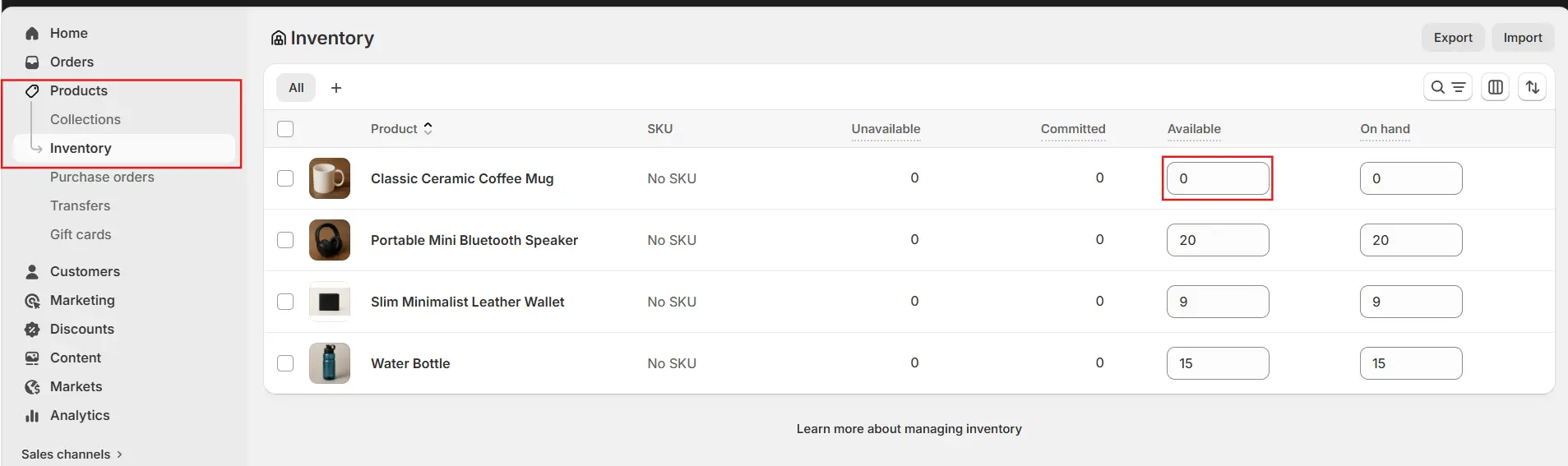
6) Click Save to confirm your changes.
Once these steps are completed, Shopify will automatically display the product as “Sold Out” and block any further purchases.
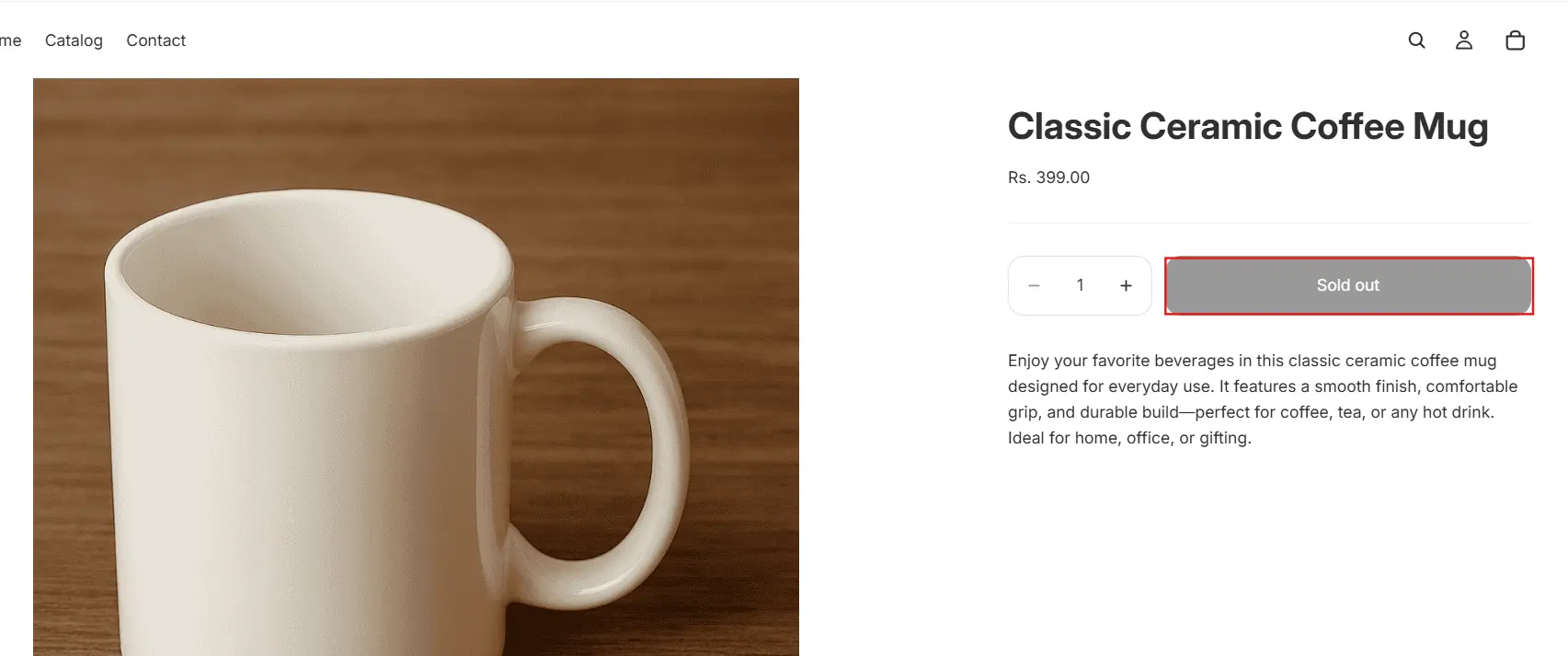
What is the Difference between Sold Out and Out of Stock?
| Aspect | Sold Out | Out of Stock |
|---|---|---|
| Definition | All units have been purchased | Product is temporarily unavailable |
| Customer Perception | Signals high demand and popularity | Suggests a supply or inventory issue |
| Shopify Behaviour | Displays “Sold Out” at 0 inventory | Same system behaviour |
| Marketing Impact | Creates urgency (FOMO) | Less urgency |
| Restocking Signal | Likely to return due to demand | May or may not be restocked |
| SEO Impact | Keep the page live | Same recommendation |
Need help setting up or customizing your Shopify store? Check out our Shopify store development services to get everything done the right way.
Why Does My Product Say Sold Out on Shopify?
A product displaying as sold out is almost always tied to how inventory is configured. The most common cause is simply that the stock count has dropped to zero. Shopify automatically marks products as unavailable when tracked inventory runs out.
Other potential causes include:
1) Inventory tracking is enabled, but no stock quantity has been added.
2) The “Continue selling when out of stock” option is disabled.
3) A specific product variant is out of stock.
4) A third-party app is modifying inventory levels.
5) Issues with the product status or availability settings.
To fix the issue, review both product-level and variant-level inventory settings carefully.
How to Remove the Sold Out Badge on Shopify?
Shopify doesn’t offer a universal built-in toggle to remove the Sold Out badge. Badge visibility depends on the theme being used.
Here are your options:
Check your theme settings first:
1) Go to your admin panel.
2) Navigate to Online Store > Themes.
3) Click Customize.
4) Look for badge or product card options in your theme settings.
If you use an Online Store 2.0 or Horizon theme, you may be able to adjust the position of Sold Out and Sale badges through theme settings. Note that Shopify’s documentation refers to changing badge position, not removing it altogether.
Hide out-of-stock products instead: Rather than displaying the badge, you can hide sold-out items from collections using smart collections:
1) Set the collection condition to Inventory stock is greater than 0.
2) Out-of-stock products will automatically be removed from those collections and reappear once inventory is restored.
Hide purchase options on the product page:
1) Create a product template that hides the Quantity selector, Buy buttons, and optionally the Price.
2) Add a Text block or Contact Form block to communicate that the item is currently unavailable.
Important note: If you sell in Germany, Shopify requires that your product page clearly show an out-of-stock message when the product cannot be purchased. If your theme has been customized, verify that any out-of-stock messaging remains visible and legible.
How to Hide Sold Out Products on Shopify?
To hide sold-out products, use inventory tracking in combination with smart collections.
Hide sold-out products from collections:
1) Open your admin panel.
2) Enable inventory tracking for your products.
3) Go to Collections.
4) Open the smart collection where you want to hide sold-out products.
5) Set Products must match all conditions.
6) Add the condition: Inventory stock > 0.
When a product goes out of stock, Shopify automatically removes it from that collection. Once inventory is restocked, it reappears without any manual action.
Hide sold-out products from your default Catalogue page:
1) Replace your default Catalogue page with a custom smart collection.
2) Apply automated conditions to that collection to exclude out-of-stock products.
Important setup checks:
1) Make sure Continue selling when out of stock is unchecked; otherwise, customers may still be able to purchase products at zero inventory.
2) If inventory isn’t being tracked, Shopify won’t be able to automatically hide sold-out products based on stock levels.
Additional options:
1) Use an app: Several inventory management apps can automatically hide or remove products when stock runs out.
2) Use Shopify Flow: Automate product publishing and unpublishing based on inventory thresholds.
3) Customize product templates: Assign a custom template that hides Buy buttons and shows an appropriate message instead.
Best Practices for Managing Sold Out Products
Managing sold-out products effectively comes down to choosing the right behaviour, maintaining accurate inventory, and delivering a clear storefront experience.
1. Decide whether to stop or continue selling
Stopping sales when out of stock is the default Shopify behaviour and helps prevent overselling and customer frustration. Continuing to sell when out of stock is better suited for:
1) Pre-orders.
2) Products you can restock quickly.
3) Made-to-order items.
To prevent overselling across your catalogue:
1) Go to Products > Inventory.
2) Use Bulk edit.
3) Add the Continue selling when out of stock column.
4) Ensure it is unchecked for all relevant products.
5) Click Save.
2. Keep inventory accurate
1) Turn on inventory tracking.
2) Update quantities regularly using individual product edits, the bulk editor, or CSV imports.
3) Test your inventory configuration to confirm products behave correctly when stock reaches zero.
3. Decide on visibility for sold-out items
1) Keep them visible if you want customers to see the product and return later.
2) Hide them automatically if you would rather not show unavailable items.
To hide sold-out products from smart collections:
1) Set Products must match all conditions.
2) Add the condition: Inventory stock is greater than 0.
4. Set up back-in-stock and reorder workflows
Shopify recommends using a third-party app to allow customers to opt into email alerts when inventory is replenished. If you use Shopify Flow, you can automate actions such as:
1) Sending reorder emails when stock runs low.
2) Adding low-stock products to a specific collection.
3) Unpublishing products when inventory hits zero.
5. Watch for location and shipping configuration issues
A product can appear sold out even if inventory exists if:
The stock is at a location that doesn’t fulfill online orders.
A dropshipping app location is missing shipping rates.
If you use multiple fulfillment locations, make sure the location holding the stock is set up to fulfill online orders.
6. Be mindful of collection and theme behaviour
If you set inventory to zero and also hide out-of-stock products, customers may not see those products at all.
Shopify doesn’t have a native setting to automatically push sold-out items to the bottom of a collection, which would require a custom solution.
7. Automate at scale
For larger product catalogues, useful automation workflows include:
1) Low stock alerts.
2) Reorder prompts.
3) Automatically unpublishing products when inventory reaches zero.
4) Merchandising low-stock products differently within collections.
Conclusion
Marking products as sold out on Shopify is more than just a backend setting; it plays a meaningful role in your customers’ experience and your store’s SEO performance. While Shopify handles sold-out status automatically through inventory tracking, store owners retain full control over how that information is displayed and managed.
By knowing how to mark products as sold out, customize labels, and control visibility, you can transform stock shortages into opportunities, building anticipation, capturing leads, and strengthening overall store performance.