


Table of Contents
Launching your Shopify store is one of the most exciting milestones in your eCommerce journey. After investing time in designing your store, adding products, and optimizing the user experience, the final step is to publish your Shopify store and make it accessible to customers worldwide.
However, going live isn’t just about clicking a button; it requires careful preparation, technical setup, and final checks to ensure a seamless launch. A successful launch reflects not only the functionality of your store but also the credibility of your brand. In this comprehensive guide, we will walk you through everything you need to know about publishing your Shopify store professionally and successfully.
How to Publish Your Shopify Store and Go Live?
To publish your Shopify store and go live, make sure you disable test payments, connect your domain, and remove password protection so customers can access your site.
Step 1: Preview Your Storefront
1) Go to your Shopify admin.
2) Navigate to Sales Channels.
3) Hover over Online Store.
4) Click the eye icon to open a preview in a new tab.
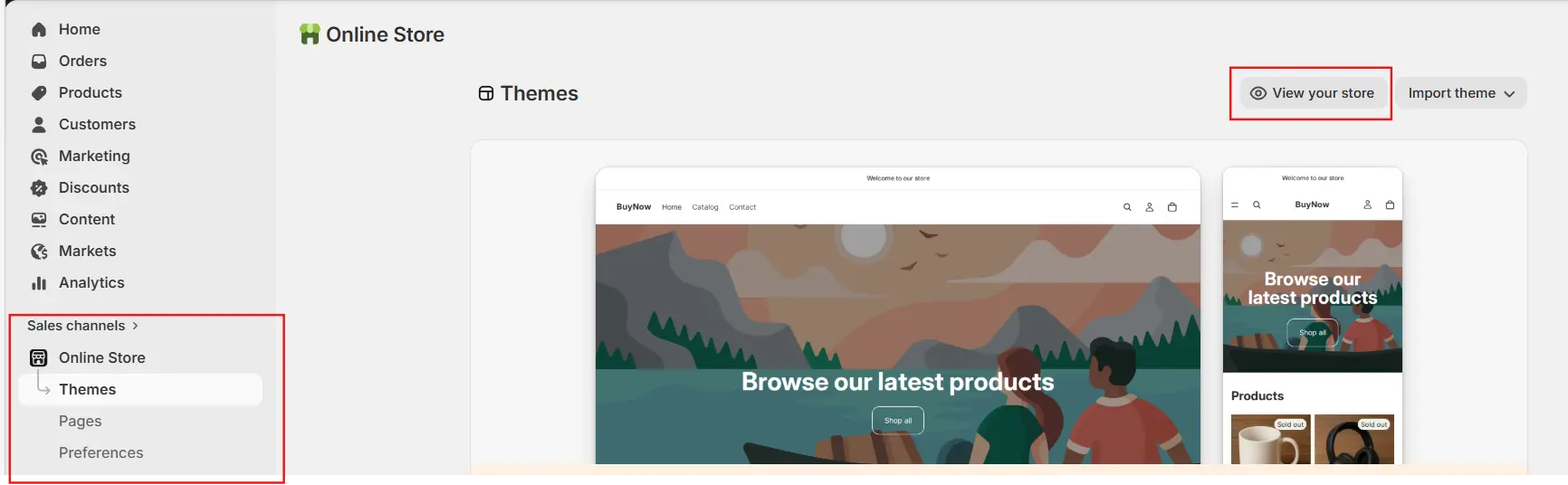
5) This shows how your store will look to customers.
Step 2: Choose a Plan (If on Free Trial)
1) During the free trial, your store is automatically password protected.
2) To launch your store publicly, select a subscription plan.
3) This allows you to remove password protection.
Step 3: Turn Off Test Mode (Enable Payments)
1) Go to Settings > Payments in your Shopify admin.
2) If using Shopify Payments, disable test mode.
3) Ensure all payment methods are set to accept real transactions.
Step 4: Connect and Set Your Domain
1) Update your domain’s DNS settings (A record and CNAME) to point to Shopify.
2) Connect your domain inside Shopify.
3) Set it as your primary domain.
Step 5: Remove Password Protection (Go Live Step)
Option A:
1) Go to Online Store > Themes.
2) Click Remove password in the banner.
Option B:
1) Go to Online Store > Preferences.
2) Under Store access, uncheck Password protection.
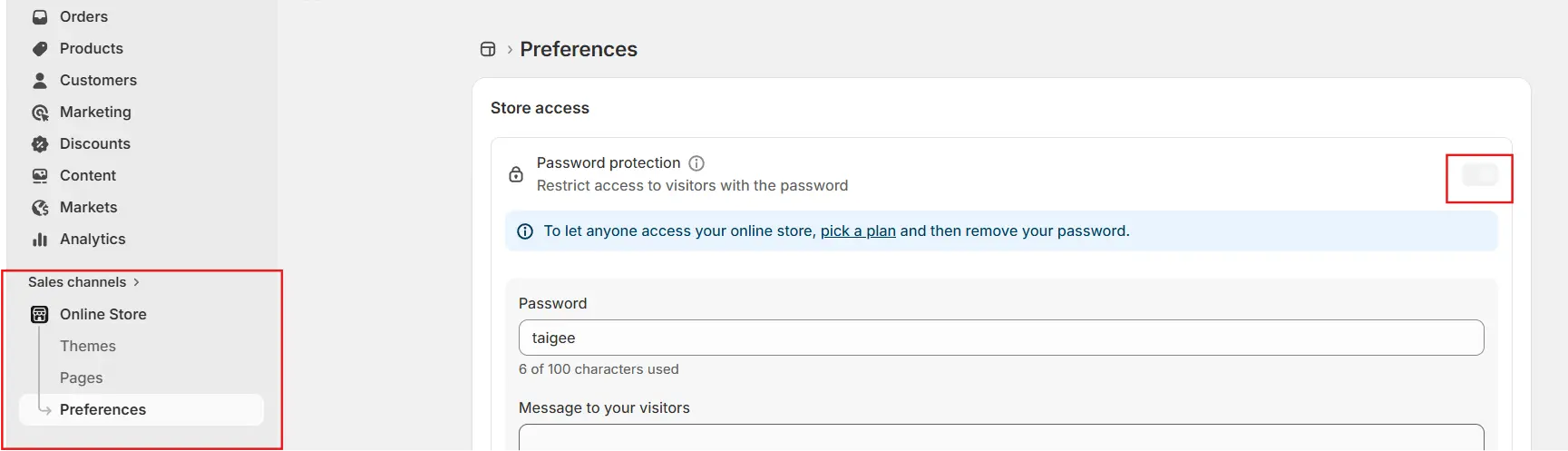
3) Click Save.
Work with our experts to build and optimize your store. Check out our Shopify Development Services for more details.
Important Steps to Keep in Mind while Publishing Your Shopify Store and Going Live?
Step 1: Prepare Your Store for Launch
Before making your Shopify store live, it is essential to ensure that all foundational elements are complete and polished. This preparation phase determines how professional and reliable your store appears to potential customers.
Add Products and Content
Your product catalogue is the core of your Shopify store, and it must be presented with clarity and precision. Each product should include detailed descriptions that clearly communicate its features and benefits, along with high-quality images that showcase it from multiple angles. Pricing should be accurate and transparent, while inventory levels must be properly managed to avoid overselling.
Beyond the technical details, your product content should reflect your brand voice and resonate with your target audience. Engaging and informative content not only helps customers make informed decisions but also enhances their overall shopping experience.
Organize Store Structure
A well-structured store ensures that visitors can navigate effortlessly and find what they are looking for without confusion. Your menus should be logically organized, guiding users through categories and collections in an intuitive manner. Important pages such as “About Us,” “Contact,” and FAQs should be easy to locate and clearly written.
A thoughtful structure improves usability and reduces friction, which directly contributes to higher engagement and conversion rates. When customers can quickly access the information they need, they are more likely to complete their purchase.
Set Up Legal Pages
Legal pages are a critical component of any professional eCommerce store. Privacy policies, terms and conditions, and return or refund policies establish transparency and demonstrate that your business operates responsibly.
These pages not only protect your business from legal risks but also reassure customers that their data and transactions are handled securely. Including clear and accessible legal information builds trust, which is essential for converting first-time visitors into loyal customers.
Step 2: Configure Payments, Shipping, and Taxes
Your Shopify store must be operationally ready to process real transactions before going live. This involves setting up essential backend systems that directly impact the customer experience.
Set Up Payment Gateways
Payment gateways enable customers to complete purchases, making them one of the most critical components of your store. Whether you choose Shopify Payments, PayPal, or other third-party providers, it is important to configure each option correctly and test them thoroughly.
A seamless payment experience reduces cart abandonment and ensures that customers can trust your store with their financial information. Even minor issues in payment processing can result in lost sales and negative impressions.
Configure Shipping Settings
Shipping plays a major role in customer satisfaction, and it must be clearly defined before launch. This includes setting up shipping zones, determining rates, and establishing delivery timelines.
Customers expect transparency when it comes to shipping costs and delivery expectations. Providing clear and accurate information helps prevent confusion and builds confidence in your service.
Set Tax Rules
Tax configuration is another essential aspect of your store’s setup. Depending on your location and the regions you serve, you need to ensure that taxes are calculated accurately during checkout.
Proper tax settings not only ensure compliance with regulations but also prevent discrepancies that could affect your financial reporting and customer trust.
Step 3: Test Your Store Thoroughly
Testing is one of the most important steps in the launch process, as it allows you to identify and resolve issues before customers encounter them.
Place Test Orders
Simulating real customer purchases provides valuable insight into how your store performs under actual conditions. By placing test orders, you can evaluate the entire checkout process, from adding products to the cart to receiving order confirmations.
This process helps ensure that payments are processed correctly, notifications are sent as expected, and the overall experience is smooth and reliable.
Check Website Functionality
Beyond transactions, your store’s overall functionality must be carefully reviewed. All links should lead to the correct pages, images should load properly, and the design should remain consistent across devices.
Mobile responsiveness is particularly important, as a large portion of users shop on smartphones. A store that performs well across all devices enhances accessibility and improves user satisfaction.
Review Content Quality
Content quality reflects the professionalism of your brand. Reviewing your store for spelling errors, inconsistent formatting, or unclear messaging ensures that your presentation is polished and credible.
Clear calls-to-action guide users through the purchasing process, while consistent branding reinforces your identity. This attention to detail can significantly influence customer perception and trust.
Step 4: Set Up Your Domain
A custom domain is essential for establishing a strong and recognizable online presence. It replaces the default Shopify URL with a branded address that customers can easily remember.
Connect or Buy a Domain
You can either purchase a domain directly through Shopify or connect an existing one. In either case, the goal is to create a professional web address that aligns with your brand name.
Configure DNS Settings
Proper DNS configuration ensures that your domain points to your Shopify store. This step is crucial for making your store accessible under your chosen URL and requires updating specific records, such as the A record and CNAME.
Set a Primary Domain
Selecting a primary domain helps maintain consistency and improves search engine optimization. Redirecting all traffic to a single domain ensures that users always land on the correct version of your site.
Step 5: Enable Analytics and Tracking
Analytics tools provide valuable insights into how customers interact with your store. By tracking user behaviour, traffic sources, and sales performance, you can make informed decisions that drive growth.
Integrating tools such as Google Analytics, Google Tag Manager, and Meta Pixel allows you to monitor key metrics and optimize your marketing strategies. Data-driven decision-making is essential for improving conversion rates and maximizing your return on investment.
Step 6: Review Integrations and Apps
Shopify stores often rely on various apps to enhance functionality, from marketing tools to inventory management systems. Before going live, it is important to ensure that all integrations are working seamlessly.
Removing unnecessary apps can improve performance and reduce the risk of conflicts. A streamlined system not only enhances speed but also ensures a smoother experience for your customers.
Step 7: Backup Your Store Data
Data protection is an important yet often overlooked aspect of launching a Shopify store. While Shopify provides a secure platform, it is still advisable to create backups of your data.
Exporting key information and using backup solutions can safeguard your store against accidental loss or technical issues. This proactive approach ensures that your business can recover quickly if needed.
Step 8: Perform Final Pre-Launch Checks
Before publishing your store, a final review ensures that everything is functioning as expected. This includes verifying product details, testing discounts, confirming shipping and tax settings, and ensuring that notifications are properly configured.
This stage is about refining the final details and eliminating any remaining issues. A thorough pre-launch check helps ensure that your store delivers a professional and seamless experience from the moment it goes live.
Step 9: Remove Password Protection
During development, Shopify stores are typically protected by a password to restrict public access. Removing this password is the step that makes your store visible to customers.
Once password protection is disabled through the store preferences, your website becomes accessible to anyone with your domain. This marks the transition from development to a live, customer-facing business.
Step 10: Go Live (Publish Your Store)
Publishing your Shopify store is the culmination of all your preparation efforts. At this stage, your domain should be connected, your payment systems should be active, and all configurations should be complete.
Making your store live means that customers can now browse your products, place orders, and interact with your brand. This moment represents the official launch of your eCommerce business.
Step 11: Post-Launch Activities
Going live is only the beginning of your journey. After launch, continuous monitoring and improvement are essential for long-term success.
Monitor Performance
Tracking metrics such as traffic, conversion rates, and sales helps you understand how your store is performing. These insights allow you to identify strengths and areas for improvement.
Fix Issues Quickly
Even with thorough preparation, minor issues may arise after launch. Addressing these problems promptly ensures that they do not impact customer experience or sales.
Start Marketing
Promoting your store is essential for attracting customers and generating revenue. Leveraging channels such as social media, email marketing, paid advertising, and search engine optimization can help you reach your target audience effectively.
What are the Common Mistakes to Avoid?
When publishing your Shopify store, certain mistakes can undermine your success. Skipping testing, launching with incomplete content, neglecting mobile optimization, or failing to include legal pages can all negatively impact your store’s performance.
Avoiding these pitfalls requires careful planning and attention to detail. A well-prepared launch significantly increases your chances of success.
What are the Pro Tips for a Successful Launch?
A successful launch often involves more than just technical readiness. Offering promotions at launch can attract initial customers and generate momentum. Building anticipation through pre-launch marketing helps create excitement around your brand.
Security measures such as two-factor authentication protect your store, while ongoing updates ensure that your website remains relevant and functional. Consistency in effort and strategy is key to sustaining growth over time.
Conclusion
Publishing your Shopify store and going live is a significant milestone that requires a balance of preparation, strategy, and execution. By carefully setting up your store, testing its functionality, and ensuring that every detail is in place, you can create a strong first impression and deliver a seamless customer experience.
A successful launch is not just about making your store accessible; it is about building a reliable and professional platform that customers can trust. With the right approach, your Shopify store can become a powerful foundation for a thriving eCommerce business.