

Table of Contents
- Introduction
- Why Changing Your Shopify Password Matters?
- How to Change your Shopify Password on Desktop?
- How to Change Your Shopify Password on Mobile (iPhone & Android)?
- Shopify Forgot Password: How to Reset It?
- How to Reset a Staff Member’s Shopify Password?
- How to Password Protect Your Shopify Store (Storefront)?
- Best Practices for Creating a Strong Shopify Password
- How to Enable Two-Factor Authentication (2FA)?
- Conclusion
Managing a Shopify store means protecting valuable business data, customer information, and payment settings. One of the simplest yet most effective ways to strengthen your store’s security is by maintaining a strong password and updating it regularly. Whether you are looking to learn how to change Shopify password, recover access after a Shopify forgot password situation, or add extra protection to your storefront, Shopify provides straightforward tools to help keep your store secure.
In this guide, you’ll learn how to change your Shopify password on desktop and mobile, perform a Shopify password reset, reset staff account credentials, enable storefront password protection, and implement additional security measures such as two-factor authentication (2FA). By following these steps, you can reduce the risk of unauthorized access and ensure your online business remains protected.
Key Takeaways
- Regularly updating your Shopify password helps protect customer data, orders, payment settings, and store configurations from unauthorized access.
- If you need to change Shopify password, you can do so quickly through the Security settings in both the Shopify desktop admin and mobile app.
- In a Shopify forgot password situation, Shopify’s password recovery system allows you to securely reset your credentials using your registered email address.
- Store owners can send password reset instructions to staff members but cannot directly view or change employee passwords.
- Adding storefront password protection and enabling two-factor authentication (2FA) provides an extra layer of security for your Shopify store.
Why Changing Your Shopify Password Matters?
Your Shopify admin controls customer data, payment settings, orders, and your entire store configuration. A weak or stale password is the single biggest open door for attackers. Here is when you should act:
Routine hygiene: Rotating passwords every 3-6 months limits exposure from slow-burn credential leaks.
Staff offboarding: A team member leaves, change the admin password immediately, even if they had a separate login.
Suspicious activity: Unfamiliar login location? Unexpected order changes? Change it now, then check active sessions.
Phishing recovery: Accidentally entered credentials on a fake site? A password change is your first damage-control step.
Shared credentials: If you ever shared your password temporarily, rotate it once access is no longer needed.
Need help keeping your Shopify store secure and running smoothly? Check out our Shopify Support & Maintenance Services.
How to Change your Shopify Password on Desktop?
This is the standard flow for an account update when you are already logged in.
1) Log in to your Shopify admin at yourstorename.myshopify.com/admin.
2) In the top-right corner, click your store name or account icon.
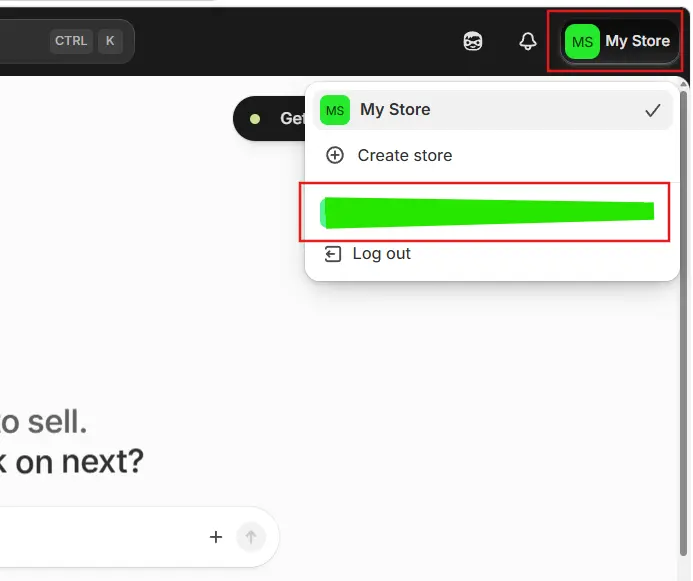
3) You will be redirected to the Accounts page.
4) Click the Security tab.
5) Under the Password section, click Change password.
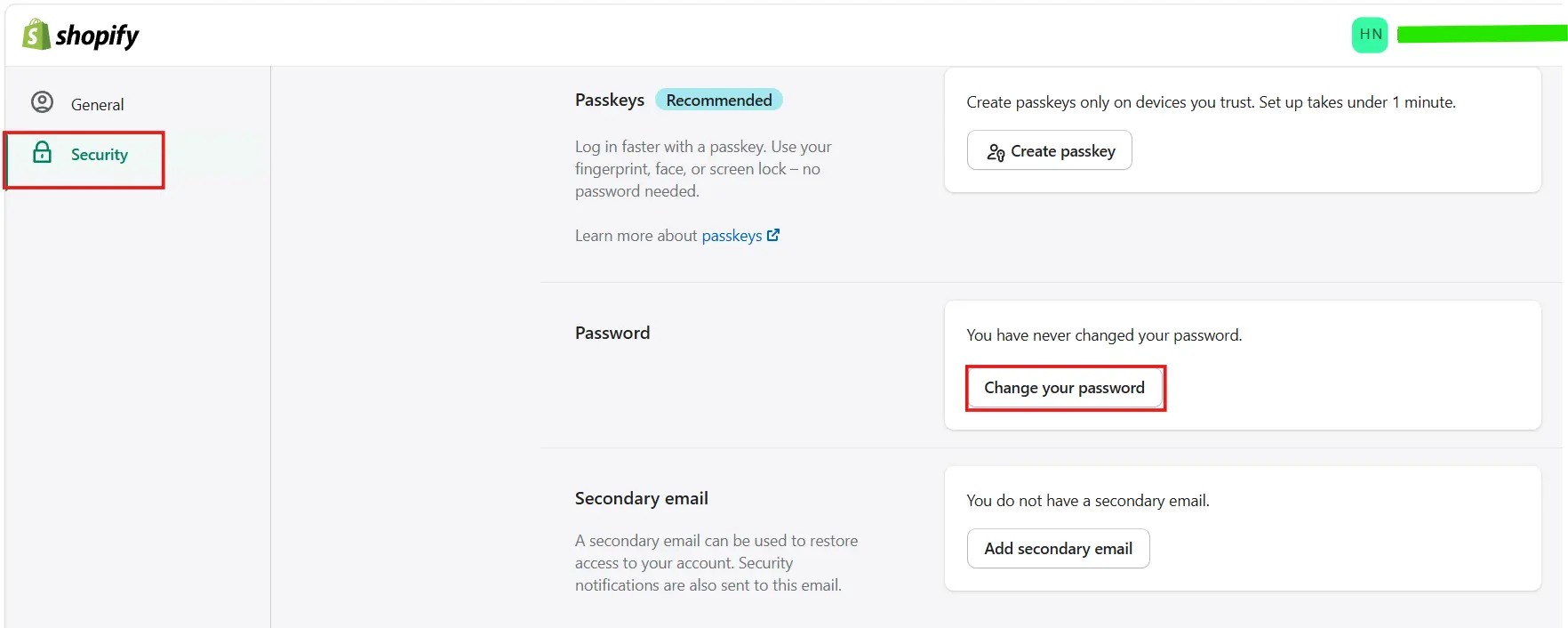
6) Enter your current password.
7) Then type your new password, aim for 12+ characters with mixed character types.
8) Confirm the new password.
9) Click Save to apply the change.
You will be signed out automatically. Log back in with the new password to confirm it works.
How to Change Your Shopify Password on Mobile (iPhone & Android)?
The Shopify mobile app mirrors the desktop flow with slightly different navigation.
1) Open the Shopify app and log in with your current credentials.
2) Tap the Store icon or the menu (three lines) in the bottom navigation bar.
3) Tap Settings, then scroll down and tap your account name or Manage Account.
4) Select Security.
5) Tap Change password.
6) Enter your current password, then your new password.
7) Confirm the new password and tap Reset password (or save).
8) Log back in with the new password to verify the update.
Shopify Forgot Password: How to Reset It?
Locked out? Shopify’s reset flow is quick as long as you have access to the email address on your account.
Step-by-step reset:
1) Go to accounts.shopify.com or your store’s login page.
2) Click Forgot password? below the password field.
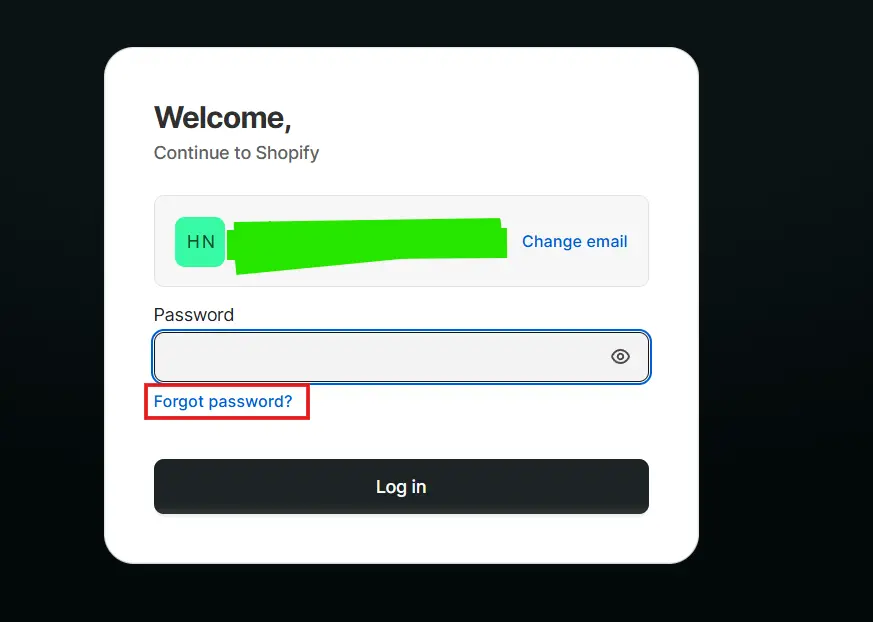
3) Enter the email address linked to your Shopify account.
4) Click Send reset link.
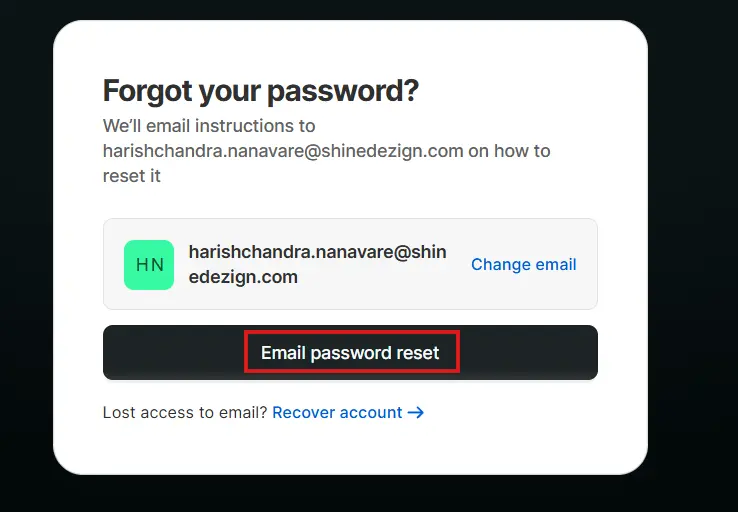
5) Check your inbox, and your spam folder, for an email from Shopify.
6) Click the reset link in the email. Note: links expire within one hour.
7) Enter and confirm your new password on the reset page.
8) Click Reset password and log in with the new credentials.
Didn’t receive the email? Check spam and junk folders first. Make sure you are using the email that is actually registered on the account, not an alias. Wait up to 5 minutes and try again. If it still does not arrive, contact Shopify Support athelp.shopify.com.
No email access? If you can no longer access the email on file, contact Shopify Support directly. They will verify your identity through alternative means before granting account access.
How to Reset a Staff Member’s Shopify Password?
As a store owner, you cannot set a staff member’s password directly, you can only send them a password reset email. This protects privacy while keeping you in control.
On desktop
1) Go to Settings → Users and permissions in your Shopify admin.
2) Click on the staff member’s name.
3) Scroll to the Reset password section.
4) Click Email instructions.
5) The staff member receives a secure link to create a new password.
On mobile
1) Open the Shopify app and tap Settings.
2) Tap Users and permissions.
3) Select the staff member’s name.
4) Tap Email instructions in the Reset password section.
How to Password Protect Your Shopify Store (Storefront)?
Shopify lets you add a password to the customer-facing side of your store. This is separate from your admin login, visitors enter this password to browse your shop. Use it for pre-launch builds, wholesale access, or development mode.
Steps to enable storefront password protection:
1) From your Shopify admin, go to Online Store → Preferences.
2) Scroll to the Password protection section.
3) Check Restrict access to visitors with the password.
4) Set a storefront password, this is what customers will enter, not your admin password.
5) Add an optional message displayed on the password page.
6) Click Save.
To remove protection, follow the same steps and uncheck the restriction. Your store becomes publicly accessible immediately.
Best Practices for Creating a Strong Shopify Password
Changing a weak password for another weak one does not help. Apply these principles every time:
12+ characters minimum: Length is the single most important factor in password strength.
Mix character types: Combine uppercase, lowercase, numbers, and symbols (e.g. @, #, !).
No personal information: Names, birthdays, or business names are easy targets for anyone who has done basic research on you.
No single dictionary words: Even long common words can be cracked in seconds with modern tools.
Unique per platform: A breach on any other site should never cascade to your Shopify account.
Try a passphrase: Four or five random unrelated words, like cobalt-mango-spanner-river, are both memorable and highly secure.
Use a password manager: Tools like 1Password, Bitwarden, or Dashlane generate and store complex passwords, so you never have to remember them.
Want to strengthen your store’s security even further? Read our guide on Shopify Theme Security and learn how to better protect your online store.
How to Enable Two-Factor Authentication (2FA)?
A strong password is your first line of defence. Two-factor authentication (2FA) is your second, and arguably more important layer. Even if someone steals your password, they cannot log in without the second verification code.
1) Click your store name (bottom-left of your admin) and select Account.
2) Go to the Security tab.
3) Under Two-step authentication, click Set up.
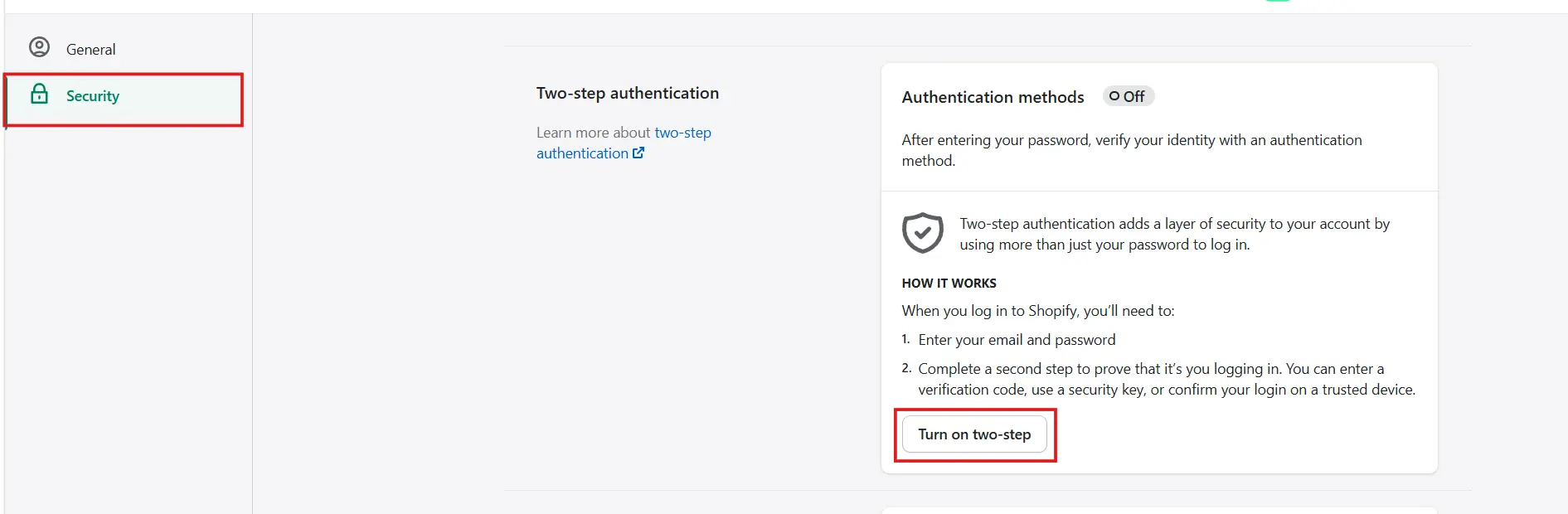
4) Choose your method: authentication app (recommended), SMS, or security key.
5) Follow the on-screen prompts to complete setup.
Save your backup codes somewhere secure, you will need them if you lose your authentication device.
Recommended apps: Google Authenticator, Authy, or Microsoft Authenticator all integrate seamlessly with Shopify.
Conclusion
Knowing how to change your Shopify password is an essential part of maintaining a secure and successful online store. Whether you are updating credentials as part of routine security maintenance, responding to suspicious account activity, or recovering from a forgotten password, Shopify offers simple tools to help you regain and protect access.
Beyond changing your password, consider implementing additional security measures such as two-factor authentication and storefront password protection. These features significantly reduce the likelihood of unauthorized access and help safeguard your customers’ data and your business operations. By following the steps outlined in this guide and adopting strong password practices, you can keep your Shopify store secure and focus on growing your business with confidence.